
The Dropbox repository enables users to copy or create a shortcut or alias to files from their own Dropbox. See Working with files for more details.
Enabling the Dropbox repository
The Dropbox repository may be enabled by a site administrator from the Manage repositories link in Site administration.
Dropbox configuration
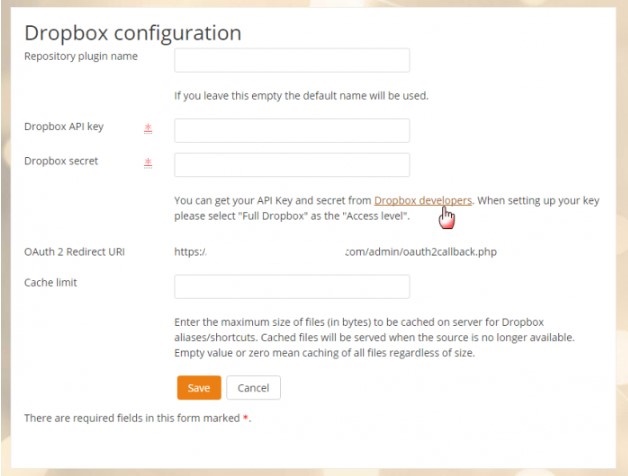
- Once enabled the administrator will need to add a Dropbox API Key and Secret. To get one, click on the “Dropbox developers” link on the Dropbox repository settings page, opening it in a new tab for convenience:
- On the next screen, sign in or create an account on Dropbox. If you don’t immediately see a blue button ‘Create app’ then click the Developers link at the bottom of the screen. On the next screen, click to create a new app.
- Choose Dropbox API’, ‘Full dropbox and name your app according to the branding rules:
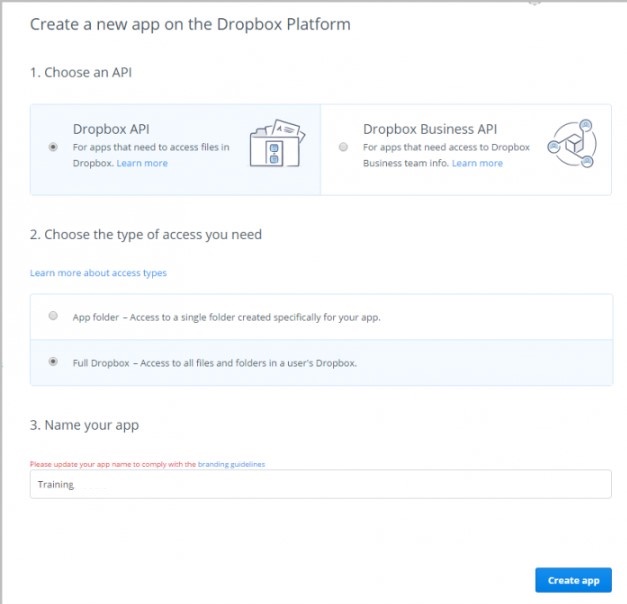
- Click the blue ‘Create app’ button
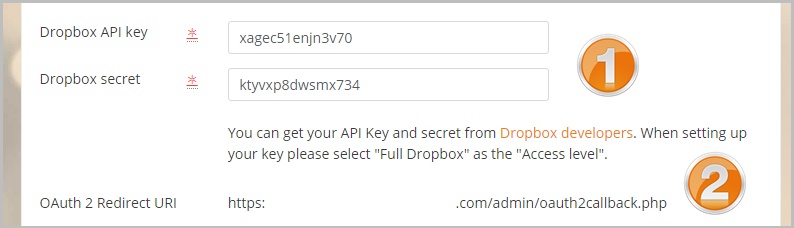
- On the next screen, you will see an App key and an App secret. Copy these and go back to your LMS site Dropbox repository settings page.
- Paste these into the appropriate fields (1 below) and then copy the Redirect URL (2 below):
- Return to the Dropbox site. Paste in the Redirect URl and click Add:

- If you wish, you can click the Branding tab and add extra information to your users, including a custom logo they will see when they connect to Dropbox on your site.
Using the Dropbox repository
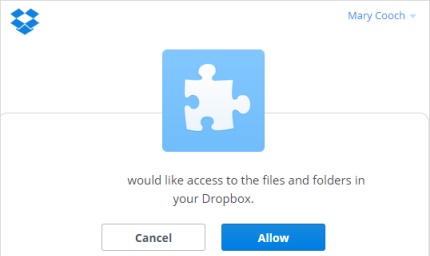
To select a file via Dropbox, editing instructors will click on the Dropbox link in the file picker and log on to access the files in their account. They will see a message requesting access:
When they are done, they can log out.
Repository capabilities
There is just one capability, View a Dropbox folder, which is allowed for the default authenticated user role.