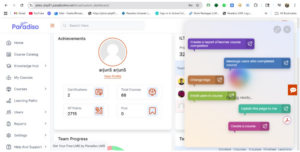
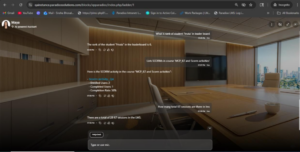
1. Maya UI/UX Enhancement
- UI/UX enhancements updated for the Maya chatbot.
- Core functionality remains unchanged and works as per the existing model.
- Font styling updated on hover over the chatbot.
- Improved loader when opening the chatbot.
- Slider transitions refined for smoother performance.
- Background and font behavior updated within the chatbot.
- Top section icons have been updated.
2. MCP: Leaderboard, Scorm package activity and ILT activity related questions:
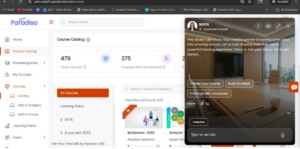
– The MCP has been successfully integrated into the AI chatbot and is functioning correctly.
– When an admin asks questions related to SCORM packages and ILT activities across the LMS, the chatbot provides accurate and relevant responses based on the query.
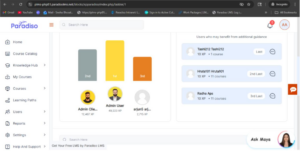
– The chatbot also responds to questions related to the Level Up leaderboard.
– On the user side, when users ask about their SCORM packages or ILT activities—such as completed ILT sessions, SCORM activity completion, or their rank in the Level Up leaderboard—the chatbot provides responses based on their individual data.
– The chatbot ensures that all responses are up-to-date and relevant.
– If a user requests admin-level information or data beyond their access permissions, the chatbot does not return a response.
3. Reporting Manager Role –
– New role with access to manager dashboard blocks; navigation similar to student without overriding existing menus.
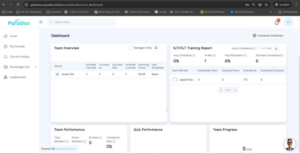
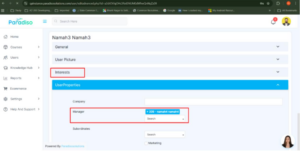
– Role Assignment – Can be assigned via User Profile (Manager field) or Master Settings.
Visibility – Reporting Managers are visible in Team Overview and can be managed from there.
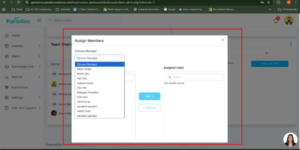
Note – Existing Reporting Managers will appear in both Team Overview and Master Settings list.
4. Added Quiz Report on Quiz Performance Block for System & Reporting Manager:
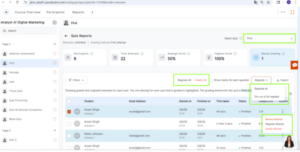
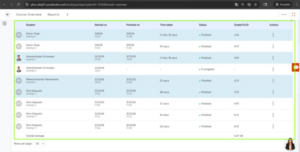
– A Quiz Report has been added to the Quiz Performance Block on the Dashboard for both System Managers and Reporting Manager.
– The System Manager can view quiz report data for all users who have attempted the quiz.
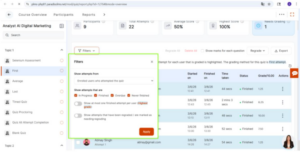
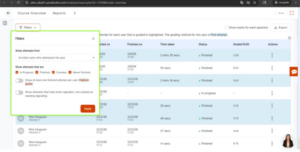
– Filters, Export, Edit, Delete, Regrade Attempts, and Quiz Selection dropdown are accessible to the System Manager.
– Filters and Export options are available to refine and download the report for both managers
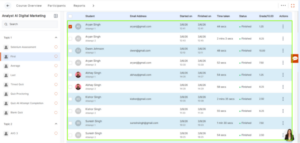
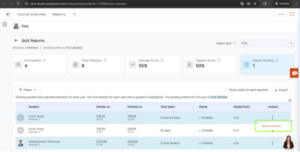
The Reporting Manager can view quiz report data only for users assigned to them.
– The selected quiz is pre-filled and displayed as a disabled field for Reporting Managers.
– Admin-level actions such as Edit, Delete, and Regrade Attempts are restricted for Reporting Managers.
5. Team Overview Block – Learning Hours Column Added:
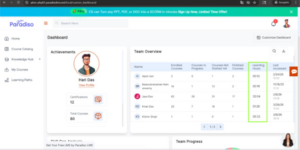
– The Learning Hours column has been added to the Team Overview Block on the Dashboard.
– Learning hours of users are now displayed for better visibility of team learning progress.
– The column is positioned at the second last position in the table.
– This enhancement helps managers easily track and analyze the learning activity of their team members.
6. ILT/VILT Training Block – Highlighted Data Repositioned Near Download Button:
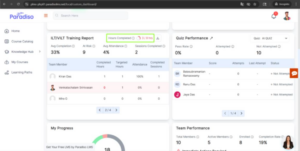
– The highlighted data (Hours Completed) in the ILT Block on the Dashboard has been repositioned as per the requirement.
– The highlighted data is now moved and displayed near the Download button.
– Enhances overall user experience by making key information more accessible.
7. Skill Advisor – Added “Create Competency” Button with Redirect:
– An enhancement has been implemented in the Skill Advisor menu to improve accessibility to the Competency Framework.
– A new submenu “Skill Advisor” has been added to the Course menu.
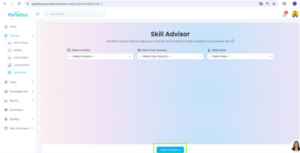
The button is editable/configurable as per requirements.
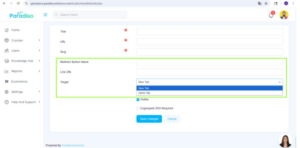
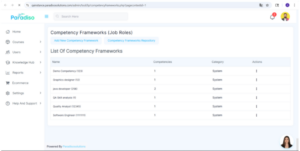
On clicking the button, users are redirected to the Competency Framework page.
– This enhancement streamlines navigation and improves user experience by providing quick access to competency creation.
8. Report UI Enhancement:
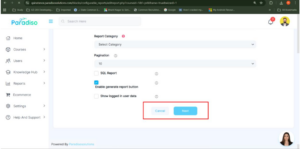
– Improved usability by positioning the forward button on the right side and adding checkbox selection with search functionality also added tooltip for report module.

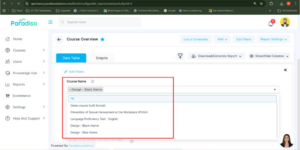
9. Roleplay in Competency:
– Roleplay added to skill gap quiz via Question Bank using iframe.
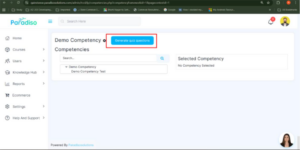
– Quiz Setup – Admin configures quiz through popup (questions, type, roleplay name, iframe).
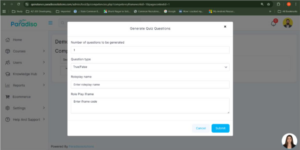
– Quiz Structure – First slide is Roleplay, followed by quiz questions.
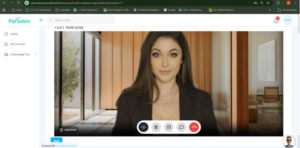
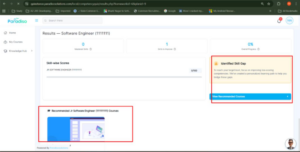
– User Flow – Quiz launches from “Assess My Skills” in Skill Gap.
– Post Quiz – Recommended courses are shown if a skill gap is identified; otherwise, none are displayed.