Enabling the Box portfolio
In order to use the Box portfolio, your LMS site must use HTTPS. In addition, an administrator must obtain a Box client ID and secret, as described in Box APIv1 migration. The client ID and secret can then be used to configure all Box plugins.
- Go to Administration > Site administration > Plugins > Portfolios > Manage Portfolios
- Activate the Box.net portfolio by selecting ‘Enabled and visible’ in the drop-down menu
- Configure each portfolio by entering the client ID and secret
- Save changes
Sending/”pushing” your files to Box
- You can export items such as assignments, chat and forum posts to enabled portfolios such as Box. Here is an example with a forum post:
- At the bottom of your completed forum post are the words “export to portfolio”.
- Click the words “export to portfolio” and then select from the dropdown Box.net (If it is the only portfolio enabled, it will be the only choice!)
- On the next screen, choose your sharing options and which folder to export to:
- Click to confirm the export:
- Click “Continue”. If you haven’t done this before you will be prompted to log in to your account. Agree and log in.
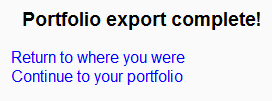
- The “export complete” message will appear. Clicking “continue” will take you to Box if you wish.