
The Buttons course format is a contributed code module. It creates a menu with buttons in JavaScript to access the sections, one by one. It has features to create a group of sections (example: modules, period) and change the button colors.
At any time, only one section is visible and the user can change the current section by clicking on the corresponding button.
Usage
- When creating a new course, select ‘ Buttons format ‘ in the ‘ Course format ‘ drop-down menu.
- To select the format, simply choose it from the list of course formats in the course settings.
- Fill the available options.
- Choose the number of sections, or leave the default of 10 sections.
- Choose where you want the first (zero) section (which has the default ‘Announcements’ forum) positioned: Either ‘ Above the list buttons ‘ or ‘ Below the visible section ‘.
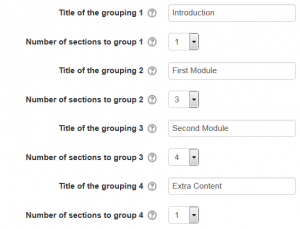
- Write the titles for all the groupings you will use and the number of sections that each one will have. If a group has only one section, the icon will be (…).
- Write the hexadecimal color for the current section button and the visible section button (or leave it empty to use the default value).
A new empty course
- A new, empty course in the buttons format will show the (number of) buttons, that lead to nowhere…
- The ‘number of sections’ is actually the number of buttons that will be visible, eg, 9 in the following example:
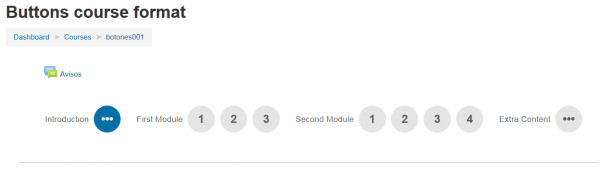
- The image below shows the settings used to produce the above image:
Populating the sections inside your course
- When you build each section inside your buttons format course, remember that the very first section will be the first section inside grouping.
- And each course section will be used for each remaining section for each existing grouping.