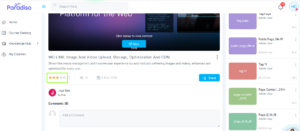
How to access LXP:
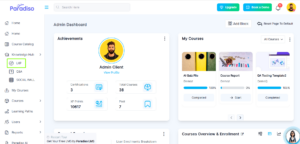
Step 1: Navigate to LXP
Go to the Knowledge Hub from the left-side navigation bar and click on LXP.
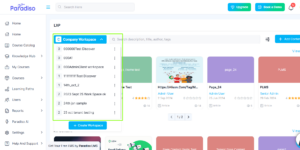
Step 2: Select the Workspace
Choose the appropriate Workspace from the workspace dropdown list.
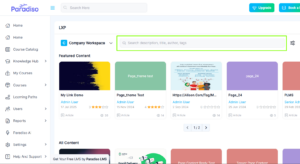
Step 3: Seearch Content in LXP
You can search content using:
- Content description
- Content title
- Content author
- Content tags
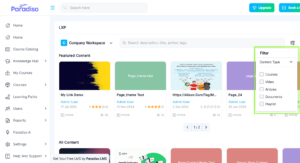
Step 4: Filter the Content
Learners can filter the content based on categories to easily find the required content.
Step 5: Add Content
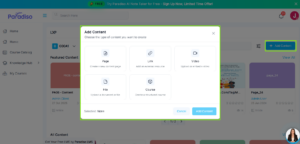
Click the Add Content button to upload new content to the workspace.
Only Admins and Workspace Owners can add content types such as:
- Page
- Link
- Video
- File
- Course
This content will be visible to all students.
Step 6: Share Content with Colleagues
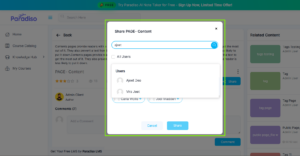
Users can share any content with their colleagues.
Step 7: Email Notification
Colleagues will receive an email notification when a video or any other content is shared.
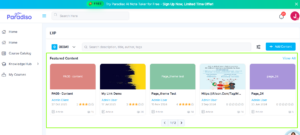
Step 8: Featured Content
Admins or Workspace Owners can mark content as Featured, so it appears at the top for all learners.
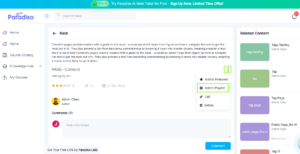
Step 9: Add Contnent to Playlist
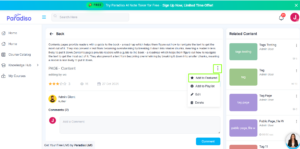
User can add the content to palylist so the user can access it easily by creating a playlist or existing playlist.
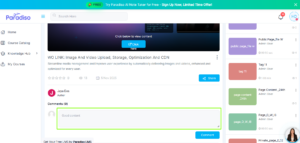
Step 10: Comment on Content
Users can visit any content and add comments.
Step 10: Rate the Content
Users can provide ratings to the content they have accessed.