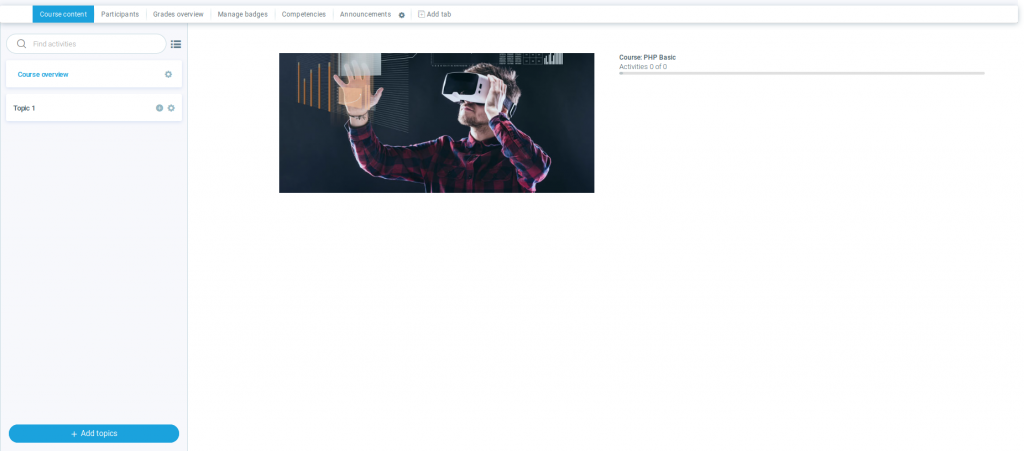
The Left navigation course format is a contributed code module. It creates the sections on the left-hand side of the course whereas the modules of left navigation such as Participants, Grades Overview, Manage badges, etc. as a tab on the top bar of the course.
At any time, only course overview which has course details and image will be visible. The topic/section panel will be in collapsed mode by default. The user can view the content by clicking on the corresponding topics/sections.
Contents
1 Usage
2 A new empty course
3 Populating the sections inside your course
4 Using top tabs inside your course
Usage
- When creating a new course, select ‘ Left navigation format ‘ in the ‘ Course format ‘ drop-down menu.
- To select the format, simply choose it from the list of course formats in the course settings.
A new empty course
- A new, empty course in the left navigation format will show the course overview on the left side and course mage and its detail on the right side in full width.
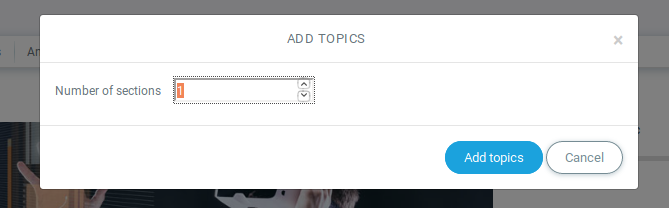
- The Topics will be added by clicking the Add topics button which is on the left panel
- The image below shows the settings used to create the topics:
Populating the sections inside your course
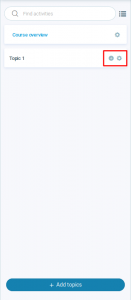
- When you build content inside a topic you have to click on the “+” icon beside the topic name.
- And each course section will be displayed on the left side of the course and in collapsed form.
Using top tabs inside your course
- Top tabs of the course will give you quick access to the corresponding module
- Add new tabs as per your requirement by clicking on the Add tabs link
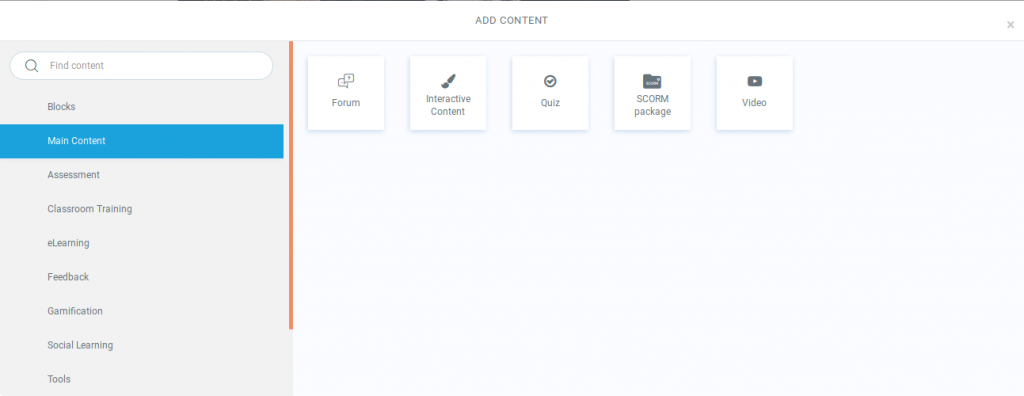
- Add important content, gamification, classroom training, feedback, social learning, and different tools in the top panel of the course