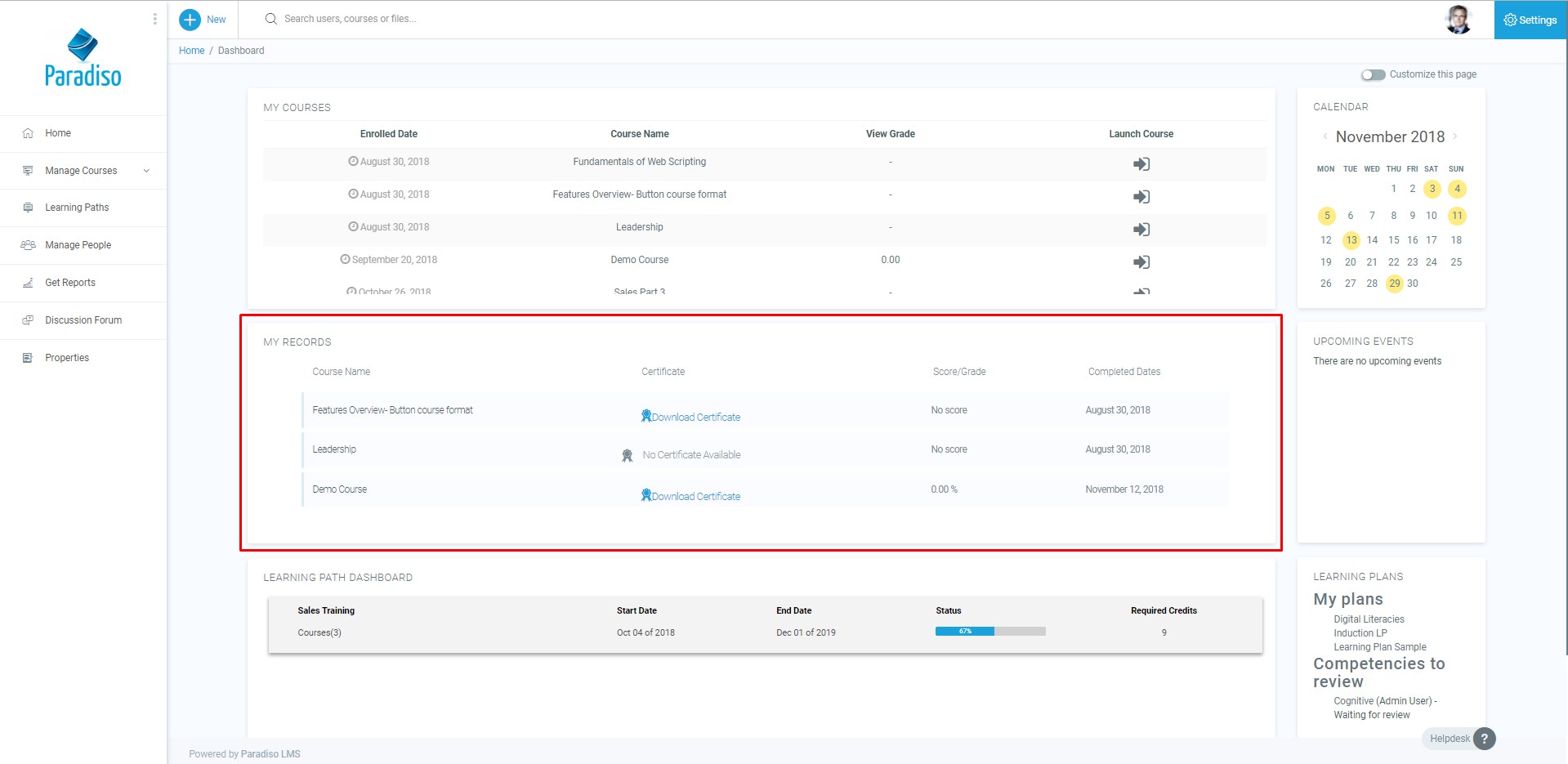
The “My Records” block allows the users to see the transcripts of completed courses.
Contents
1 How to add the “My Records” block
2 What information can the user see
How to add the “My Records” block
- From the “My Records” page, toggle the “Customize this page” button
- Click the “Add tab” icon that will show up next to the “Customize this page” button
- A new page will pop up. On the list displayed, click on the “My Records” option
- The block will be automatically added to the home page, usually, at the bottom of it.
What information can the user see
Once the block is added, it will show the next information:
- Course name: displays the name of the courses on the record.
- Certificate: this field shows if a certificate is available, if so, also gives the option to download it by clicking on the link.
- Score/Grade: displays the grade or score the user obtained on each specific course.
- Completed dates: It shows the date in which the course was completed.